AI Features in pgAdmin: The AI Chat Agent
This is the second in a series of three blog posts covering the new AI functionality in pgAdmin 4. In the first post, I covered LLM configuration and the AI-powered analysis reports. In this post, I'll introduce the AI Chat agent in the query tool, and in the third, I'll explore the AI Insights feature for EXPLAIN plan analysis.
If you've ever found yourself staring at a database schema you didn't design, trying to work out the right joins to answer a seemingly simple question, you'll appreciate what the AI Chat agent brings to pgAdmin's query tool. Rather than having to alt-tab to an external AI service, paste in your schema, describe what you need, and then copy the resulting SQL back into your editor, the entire conversation now happens within the query tool itself, with full awareness of your actual database structure.
Finding the AI Assistant
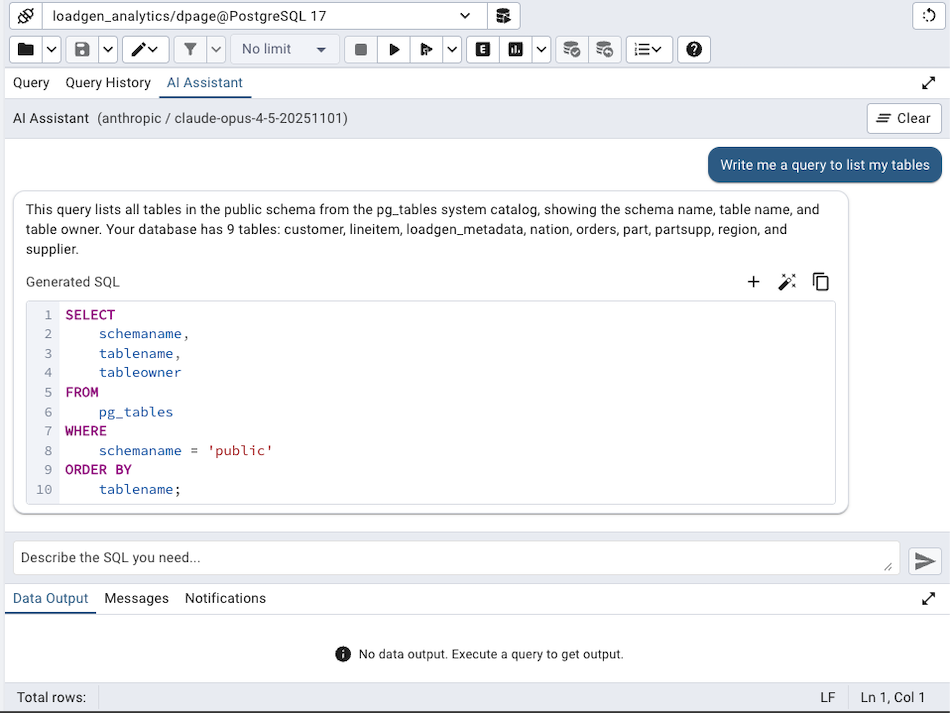
The AI Chat agent appears as a new tab alongside the Query and Query History tabs in the left panel of the query tool. It's labelled 'AI Assistant' and is only visible when an LLM provider has been configured (as described in the first post in this series). The panel header shows which LLM provider and model are currently active, so you always know what's generating your responses.
 Natural Language to SQL
The core capability of the AI Chat agent is translating natural language questions into SQL queries. You type what you want to know in plain English (or whatever language you're comfortable with), and the assistant generates the corresponding SQL, complete with an explanation of what it does and why it was written that way.
For example, you might type something like:
Show me the top 10 customers by total order value, including their email addresses
The assistant will first inspect your database schema to understand the available tables and relationships, then generate an appropriate query. The response includes both the SQL and a brief explanation, so you can understand what the query is doing before you run it.
What makes this particularly useful is that the assistant doesn't just guess at your schema; it actively inspects the database using a set of tools that allow it to discover schemas, tables, columns, constraints, and indexes. This means the generated SQL uses your actual table and column names, respects your foreign key relationships, and takes advantage of your existing indexes where appropriate.
How the Agent Works
Behind the scenes, the AI Chat agent operates as a tool-using LLM agent with access to four database inspection tools:
get_database_schema: Lists all schemas, tables, and views in the connected database
get_table_info: Retrieves detailed column, constraint, and index information for a specific table
get_table_columns: Gets column names, data types, nullability, and defaults for a table
execute_sql_query: Runs read-only SELECT queries to understand data structure and content
When you send a message, the assistant typically begins by calling get_database_schema to understand what tables are available, then drills into specific tables with get_table_info to understand columns and relationships, and finally constructs the appropriate SQL. This tool-use loop can iterate multiple times for complex requests; the assistant might need to inspect several tables, check column types, or even run a quick exploratory query before it can generate the final answer.
All of this happens within a strict safety boundary. The execute_sql_query tool runs exclusively within a READ ONLY transaction, results are capped at 1,000 rows, and the maximum number of tool call iterations is configurable (defaulting to 20) through the preferences. The assistant cannot modify your data; it can only read and inspect the database structure.
Working with Generated SQL
When the assistant generates a SQL query, it's presented in a syntax-highlighted code block with three action buttons:
Copy: Copies the SQL to your clipboard
Insert at Cursor: Inserts the SQL at the current cursor position in the query editor, which is handy if you want to incorporate it into a larger script
Replace Query: Replaces the entire contents of the query editor with the generated SQL
The generated SQL is automatically formatted according to your editor preferences for keyword case, identifier case, data type case, and function case, so it blends naturally with the rest of your code.
Conversational Context
The chat maintains a full conversation history within the session, so you can refine your requests iteratively. If the first query isn't quite what you wanted, you can say something like "Actually, filter that to just orders from the last 30 days" and the assistant will adjust the previous query accordingly. The assistant is also smart enough to ask clarifying questions when your request is ambiguous; if you ask for 'the users table' but there are multiple schemas each containing a users table, it will ask which one you mean rather than guessing.
You can navigate through your previous messages using the up and down arrow keys, much like command-line history, which is convenient when you want to rephrase or resubmit an earlier question. The Shift+Enter combination lets you type multi-line messages, whilst pressing Enter on its own sends the message.
Beyond SELECT Queries
The AI Chat agent isn't limited to SELECT queries. It can generate INSERT, UPDATE, DELETE, and DDL statements as well. If you ask it to "add a created_at timestamp column to the users table with a default of now()", it will generate the appropriate ALTER TABLE statement. For UPDATE and DELETE operations, the assistant is instructed to always include WHERE clauses, providing a useful safety net against accidentally modifying every row in a table.
That said, it's worth emphasising that the generated SQL is always presented for your review before execution. The assistant never runs modification queries automatically; it generates the SQL and presents it to you, and you decide whether to run it. This keeps you firmly in control.
Streaming Responses
Responses are streamed to the browser via Server-Sent Events (SSE), so you see progress in real time rather than waiting for the complete response. Whilst the assistant is working, you'll see animated thinking messages with PostgreSQL-themed phrases such as 'Consulting the elephant...', 'Traversing the B-tree...', and 'Vacuuming the catalog...' that rotate every couple of seconds to let you know the analysis is in progress. If a request is taking too long (there is a five-minute timeout), you can click the Stop button to cancel the in-flight request and try a different approach.
Practical Tips
Having worked with the AI Chat agent extensively during development, here are a few observations that might help you get the most from it:
Be specific about what you want. "Show me user activity" is vague, but "show me the number of logins per day for the last month, grouped by user role" gives the assistant enough context to generate precise SQL.
Use it for exploration. When you're working with an unfamiliar database, asking questions like "what tables contain customer data?" or "how are orders related to products?" can be faster than manually browsing through the schema tree.
Review the generated SQL before running it. The assistant is generally very good, but it's working with an LLM under the hood, and LLMs can occasionally produce incorrect or suboptimal queries. Always review what's been generated, especially for modification operations.
Take advantage of the conversation flow. Start broad and refine iteratively; it's much more natural than trying to specify everything in a single message.
What's Next
In the final post in this series, I'll cover the AI Insights feature in the EXPLAIN plan viewer, which analyses your query execution plans and provides actionable optimisation recommendations, including specific index creation statements that you can insert directly into the editor. If you've ever found EXPLAIN output difficult to interpret, this feature is for you.